
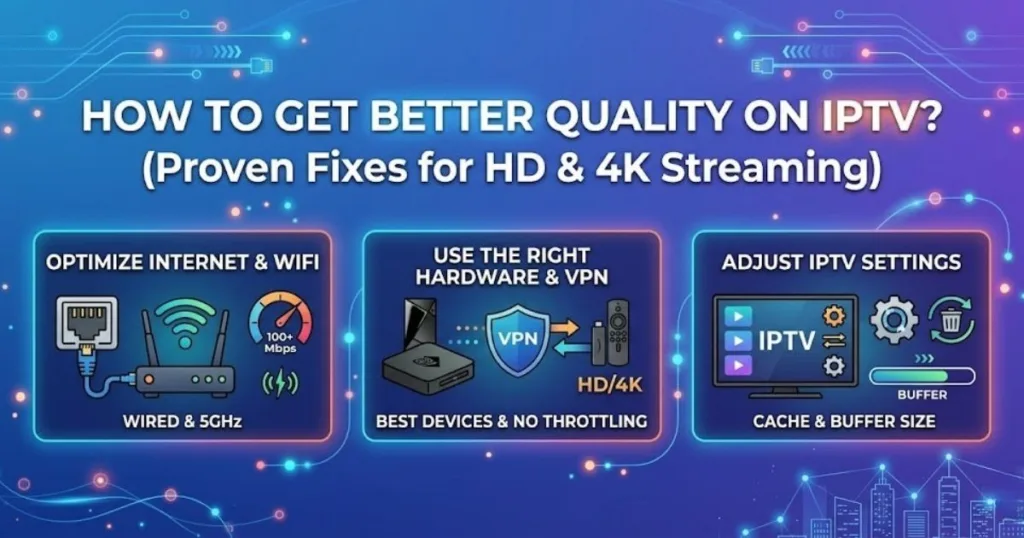
You are not the only one complaining about buffering, pixelation or low resolution in your IPTV service. The majority of the IPTV quality issues are caused by slow internet connection, improper configuration of the device, or the poor IPTV subscription, and all of them can be resolved.
This manual includes all the tested ways of enhancing the quality of your IPTV, including optimization of the speed of the internet, setting up of VPN software, as well as some adjustments at the level of devices, to not have to keep facing disconnects in the stream of HD and even 4K IPTV content.
Table of Contents
ToggleWhy Is My IPTV Quality So Bad?
To correct the problem, you must first understand the cause of the problem. IPTV uses data packets transmitted in real time by the internet. Buffering, lag or dropped resolution can be caused by any weak link in your chain of network.
The majority of poor IPTV quality reasons:
- Slow or unreliable internet – HD requires 10–20 Mbps, 4K requires 25–50 Mbps.
- Walls, distance and other devices obstruct Wi-Fi signals.
- ISP throttling – your ISP slows down streaming bandwidth at the busiest times.
- Oversized IPTV servers, which are prevalent in cheap UK IPTV subscription providers.
- Older machines require high RAM and slow processors to support streams of high bitrate.
- Incorrect DNS configurations — sluggish DNS will introduce latency to all the streams.
IPTV Streaming Requirements in Relation to Internet Speed
Internet speed forms the basis of IPTV quality. The recommended speeds are the following:
| Resolution | Minimum Speed | Recommended Speed |
| SD (480p) | 5 Mbps | 10 Mbps |
| HD (720p/1080p) | 10–20 Mbps | 25–30 Mbps |
| 4K UHD | 25 Mbps | 50 Mbps |
| Multiple Streams | 50 Mbps+ | 100 Mbps+ |
To test your internet speed for IPTV, check with Speedtest by Ookla and evaluate three things:
- Download speed – the most important one to play HD/4K.
- Ping (latency) – maintain it less than 30ms when using live IPTV channels.
- Jitter – high jitter results in video chop even on high speed connections.
You should run your speed test at the busiest times of the evening – the time of day that buffering occurs in the majority of IPTV UK services.
Fixing Your Network to Enhance IPTV Streaming Quality
Switch to a Wired Ethernet Connection
This constitutes the single most important upgrade that can be done. A wired connection gives you:
- Low latency for live sporting events.
- None of the wireless interference of neighboring devices.
- Constant bitrates for 4K and HD.
Wi-Fi 6 is quick, yet it remains unable to rival Ethernet in terms of streaming reliability. A wireless connection should never be used when you are on a UK IPTV subscription and watching live football or PPV events.
How to Optimize Wi-Fi to Improve IPTV
Where Ethernet is not an option, make your Wi-Fi better:
- Install your router in the middle and at a high level – not on floors or in corners.
- Switch to the 5GHz band rather than 2.4GHz because it is less congested.
- Upgrade to a dual-band/Wi-Fi 6 router to support modern IPTV devices.
- Keep your IPTV device close to your router (under 10–15 feet).
- Keep microwaves, baby monitors and cordless phones away from your router – they cause interference at 2.4GHz.
Change Your DNS Settings
The default ISP DNS is slow and can even slow down IPTV streams. Reconfiguring to a faster DNS server will enhance the response time and loading time.
Recommended DNS servers:
| DNS Provider | Primary | Secondary |
| Google DNS | 8.8.8.8 | 8.8.4.4 |
| Cloudflare DNS | 1.1.1.1 | 1.0.0.1 |
| OpenDNS | 208.67.222.222 | 208.67.220.220 |
To make it work on all devices on your network, change the DNS in your router settings.
Enabling QoS (Quality of Service) on Your Router
QoS allows you to give higher priority to IPTV traffic compared to other internet activities on your network. QoS ensures that your IPTV stream is not affected when another person is downloading files or gaming.
- Access your router administration panel.
- Locate the QoS or Traffic Management section.
- Prioritize your IPTV device or application.
This comes in handy particularly for IPTV UK users who share a connection with more than one individual.
Router and Hardware Upgrades to Achieve Improved IPTV Quality
When to Upgrade Your Router
Poor IPTV performance can very likely be an undetected result of old routers. Signs you need an upgrade:
- Regular loss of connection with live broadcasting.
- Speed varies even on wired connections.
- The router overheats and decelerates.
Types of best routers for IPTV streaming:
| Router Type | Best For |
| Dual-band (Wi-Fi 5) | Small households, 1–3 devices |
| Tri-band (Wi-Fi 6) | Several intense users, 4K streams |
| Mesh Wi-Fi system | Spacious houses, whole-home IPTV |
VPN Advice on Preventing ISP Throttling on IPTV
A lot of ISPs in the UK throttle streaming traffic, particularly IPTV. An effective VPN will go around throttling and can considerably enhance the quality of IPTV streams.
How to properly use a VPN with IPTV UK:
- Connect to a server close to you – a UK server for IPTV UK services.
- Use the WireGuard protocol – the fastest VPN protocol in 2026.
- Do not use overloaded servers – switch to less congested servers.
- Test before live events – do not configure a new VPN during a live match.
When a VPN won’t help:
The problem can be server-based (sluggish IPTV provider) and a VPN will not resolve this. VPN is useful in overcoming ISP throttling and routing problems, not provider-side issues.
Device-Level Fixes to Enhance IPTV Playback Quality
Top Devices for IPTV Streaming in 2026
The hardware of your device has a direct impact on its ability to handle high-bitrate streams:
| Device | RAM | Best For |
| NVIDIA Shield Pro | 3GB | 4K IPTV, best overall |
| Amazon Fire TV 4K Max | 3GB | Budget 4K IPTV |
| Android TV Box (Ugoos/Formuler) | 4GB+ | IPTV-optimized performance |
| Apple TV 4K (3rd gen) | 4GB | Smooth HD/4K, iOS ecosystem |
Android boxes with 1–2GB RAM are not recommended as they buffer and crash with HD IPTV streams.
Clear IPTV App Cache Periodically
Cached data accumulates and delays the loading of streams. Do this monthly:
- Go to Settings → Apps → Your IPTV app.
- Tap Clear Cache.
- Restart the device.
This single fix resolves stuttering on most IPTV UK subscription setups.
Close Background Applications Before Streaming
Background applications consume both RAM and bandwidth. Before starting a stream:
- Close all unused apps.
- Stop any downloads or updates.
- Reboot your device if it has been running for several days.
Adjust Your IPTV Buffer Size
The majority of IPTV applications (Tivimate, GSE Smart IPTV, IPTV Smarters Pro) allow setting the buffer size manually:
- Slow or fluctuating connection – raise buffer size (4,000–8,000ms).
- High, fixed connection – reduce buffer size (1,000–2,000ms) for less delay on live streams.
Use an External Media Player
Apps such as VLC and MX Player decode streams more efficiently than built-in IPTV players:
- Higher quality hardware decoding.
- Fewer stutters on HD channels with high bit rate.
- More format compatibility.
Selecting a Better IPTV Provider for Improved Quality
Even optimizing your network will not cure a defective IPTV provider. Here’s what to look for:
Signs of a good IPTV UK subscription provider:
- Multiple server portals – backup streams in case one server is busy.
- 99% and above uptime guarantee, particularly during live events and sports.
- EPG (Electronic Program Guide) support with accurate information.
- Dedicated 4K channels – not SD scaled to 4K.
- 24-hour customer service and fast response.
Signs to avoid:
- Continual buffering at peak times (evenings and weekends).
- HD channels that silently drop to SD when loading.
- Channels that go offline during live games or PPV events.
Pro hint: If your provider offers more than one portal (M3U links or other server IPs), test them all. The backup portal is often less congested.
Advanced Fix: Port Forwarding for Better IPTV Data Flow
Port forwarding enables IPTV data to reach your device through a more direct route, minimizing:
- Packet loss – fewer dropped frames when playing HD.
- Latency – faster response on live channels.
- Reconnection time – faster recovery after brief signal dropouts.
Make sure your IPTV provider has documentation, then configure the required ports in your router settings.
Concluding Remarks: IPTV Quality from Personal Experience
After testing various IPTV UK subscription providers on several devices and network configurations, the greatest improvements always came from two factors: replacing Wi-Fi with Ethernet, and replacing the default ISP DNS with Cloudflare (1.1.1.1).
These two modifications alone eliminated 80 percent of buffering problems. A VPN was useful in cases where ISP throttling was evident – mostly in the evening. The NVIDIA Shield Pro remains the most stable device for real-world 4K IPTV usage.
FAQs: How to Obtain Higher Quality Through IPTV
Q: My IPTV buffers even with a high internet speed. Why?
Buffering over a high-speed connection typically refers to ISP throttling, Wi-Fi interference or a flooded IPTV server. Try Ethernet and test a VPN to determine the cause.
Q: Does a VPN necessarily enhance IPTV quality?
Only if your ISP is slowing down streaming traffic. If the issue is with your IPTV provider’s servers, a VPN will not help – change the provider or portal instead.
Q: What is the best DNS for streaming IPTV?
Both Cloudflare (1.1.1.1) and Google (8.8.8.8) are good options. In most locations, Cloudflare is slightly quicker in 2026.
Q: Is Ethernet actually much better than Wi-Fi for IPTV?
Yes. For live HD and 4K IPTV streams, Ethernet provides consistent low-latency performance which Wi-Fi 6 cannot always deliver.
Q: How often should I clear my IPTV app cache?
A monthly basis is reasonable. If you notice slow loading or stuttering, clear it immediately.
Q: What is the best device for IPTV streaming in 2026?
The NVIDIA Shield Pro is the best overall. For budget options, the Amazon Fire TV 4K Max and Formuler Z8 Pro are great choices for IPTV UK users.
Q: Can I enhance IPTV quality without upgrading my router?
Yes – change your DNS, enable QoS, switch to Ethernet and clear your cache. Only upgrade your router if these steps fail to resolve the problem.